Engineering · Mobile
Will iPhone Duo kill React Native?
iPhone Duo brings new set of paradigms to user experience. I was wondering how they affect the native Swift vs React Native discussion.
Contents
I’ve just seen a job post for React Native engineers who care about “performance and the little details that make an app feel great”. Those two things are typically the downsides of choosing React Native over native, so the post caught my attention.
I’ve had this discussion in basically every company I’ve worked for. I was super-early adopter of React in 2013, and then React Native in 2015. In fact, I believe we had one of the very first React Native apps in the App Store back then. Since then I’ve kept revisiting the tradeoffs, and iPhone Duo is a reason to do it again.
Navigation is probably the root of the whole mobile experience, so it’s a natural starting point. The tab bar is the core navigational element, and Apple has changed it twice in a year. iOS 26 made it a floating Liquid Glass capsule that shrinks when you scroll. Then with iPhone Duo, on many of its screens the tab bar is no longer at the bottom.
So I’ve again built the same app three times and ran each version on an iPhone 17 Pro Max and on the iPhone Duo simulator for comparison. I’ve always been a fan of experimenting directly with code, to fully understand all the capabilities and limitations, in my mind it’s hard to do great design without understanding the “material”.
React Native is the default for apps that ship on two platforms
The case for React Native is simple: same or similar code across platforms - the benefits are pretty obvious. Shopify listed the same reasons when it moved to React Native in 2020: stop building the same features twice, let developers work across the stack, and spend less time chasing feature parity.
Today most React Native apps start with Expo. The React Native docs recommend starting with a framework, and Expo is the one they name. Expo generates the Xcode and Android projects from a config file, ships a library of native modules, a router based on files and a build service. Plain React Native, without Expo, gives you the native projects directly. You own the Podfile, the Xcode project and every native dependency. React Navigation is the usual router there.
Both versions render real platform views. A React Native <Text> becomes a UILabel on iOS. This is what people mean by “React Native is native”, and for text, images and buttons it is true.
iPhone Duo moves the tab bar to the side
A tab bar is a different kind of component. It belongs to the app’s navigation, and on iPhone Duo Apple changed where the navigation bars sit. From Apple’s guidelines for iPhone Duo:
- On the outer display, the status bar, the toolbar and the tab bar move into a vertical rail on one side, to keep more height for content.
- On the open inner display in landscape, the rail stays on the side. In portrait the bars go back to the top and bottom.
- In Split View each app puts its rail on its outer edge.
- When the rail runs out of space, the app decides what to keep. A navigation app keeps the tab bar and moves toolbar items into an overflow menu. A task app minimizes the tab bar and keeps the toolbar.
Apple’s developer guide adds a line for anyone with a custom bar: the system only moves the bars that come with its navigation containers. A bar you draw yourself stays where you drew it. Apple’s design talk for iPhone Duo adds one more option: on the open display an app can show its tabs as a sidebar.
Expo published its iPhone Duo guide on launch day. It says a tab bar drawn in JavaScript is “intentionally not supported” in the rail position, and calls it “not recommended”. Its advice is to let iOS draw the navigation.
I built the same app three times
The test app is a small podcast player. It has four tabs (Home, New, Library, Search), a badge on New, a mini player above the tab bar, and a detail screen with six toolbar buttons. The tab bar shrinks when you scroll down. A settings screen switches each tab bar behavior on and off, including the three Duo settings from Apple’s guidelines. I only looked at iOS. Android has its own navigation patterns, and they would need a post of their own.
- SwiftUI. The reference, using
TabView. - React Native with a JavaScript tab bar. Expo SDK 58 with a tab bar drawn in React Native, using Expo’s Liquid Glass view and Reanimated. This is how React Native apps have traditionally drawn their tab bar.
- React Native with the UIKit tab bar. The same Expo SDK 58 app with Expo Router’s
NativeTabs, which hands the tab bar to UIKit.
Both React Native apps use Expo, so the tab bar is the only difference between them. Plain React Native has the same two options in React Navigation, and its native tabs run on the same library as NativeTabs.
Most React Native apps still draw the tab bar in JavaScript. On GitHub about 83,000 files import the JavaScript Tabs from Expo Router, and about 8,800 import NativeTabs. But since SDK 55 in February 2026, a new Expo app starts with NativeTabs. So the third app is where React Native is heading, and it brings another layer between your code and UIKit.
SwiftUI gets every Duo behavior from the SDK
The SwiftUI app has no code written for iPhone Duo. On the outer display, iOS moved the tab bar, the Settings button and the status bar into the rail on the right, and the list stopped at the edge of the rail.
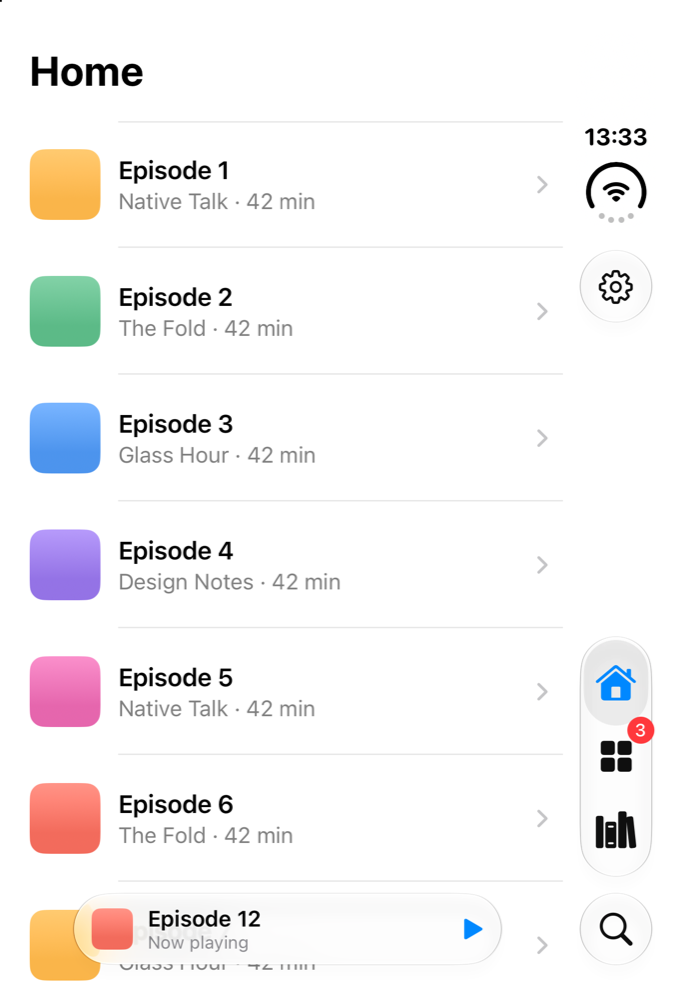
SwiftUI on the iPhone Duo outer display. iOS places the status bar, Settings, the tab bar and Search in the rail.
Each Duo setting is one modifier: .toolbarVerticalCompressionBehavior for what the rail keeps, .toolbarVerticalBehavior to turn the rail off on one screen, and .defaultTabBarPlacement for sidebar or rail. The first two arrived with the iOS 27.1 SDK, on the day the phone shipped. The tab bar placement came with iOS 27.0.
TabView(selection: $selection) { … }
    .tabViewStyle(.sidebarAdaptable)
    .tabViewSearchActivation(.searchTabSelection)
    .defaultTabBarPlacement(.automatic)
    .toolbarVerticalCompressionBehavior(.prefersTabBar)
    .toolbarVerticalBehavior(.automatic)
Pros:
- Every tab bar behavior on iPhone and Duo comes from the system: the glass, the minimize animation, the search tab, the rail and the overflow.
- New behaviors arrive with the SDK. Switching the search tab to a separate button took one modifier.
- Dynamic Type, VoiceOver and the large content viewer work without extra code.
Cons:
- An Android app is a second codebase in Kotlin.
- The team needs Swift skills, or coding agents that can write Swift well.
A JavaScript tab bar comes close on iPhone and stays at the bottom on Duo
On the iPhone the JavaScript tab bar is close to the system one. Expo’s Liquid Glass view draws the capsule, and Reanimated runs the shrink on scroll. Someone who doesn’t know the system bar would not notice anything.
Up close the missing parts show. The selected tab has a flat tinted pill, where the system bar has a glass lens that you can drag across the tabs. The capsule and the search circle don’t merge as glass when you switch to Search. The labels stay the same size at the largest text setting.
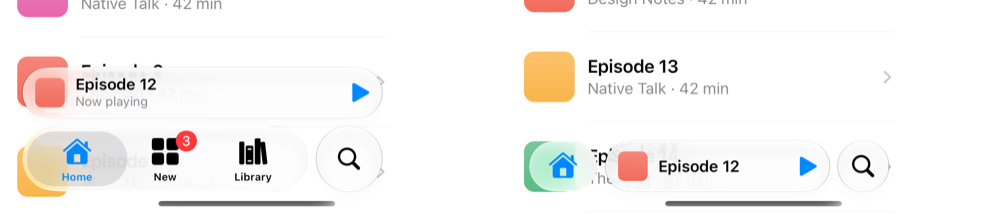
The JavaScript tab bar, full and minimized, with Search as a separate button.
On iPhone Duo the bar stays a horizontal capsule at the bottom of the outer display. The rail holds only the status bar and the Settings button, because those two come from Expo’s native header. A tab bar drawn in JavaScript doesn’t move into the rail or turn into a sidebar on its own. Someone has to build that, or the team switches to the UIKit tab bar. And as you can see on the screenshot below, the missing rail will oftentimes be glaring.
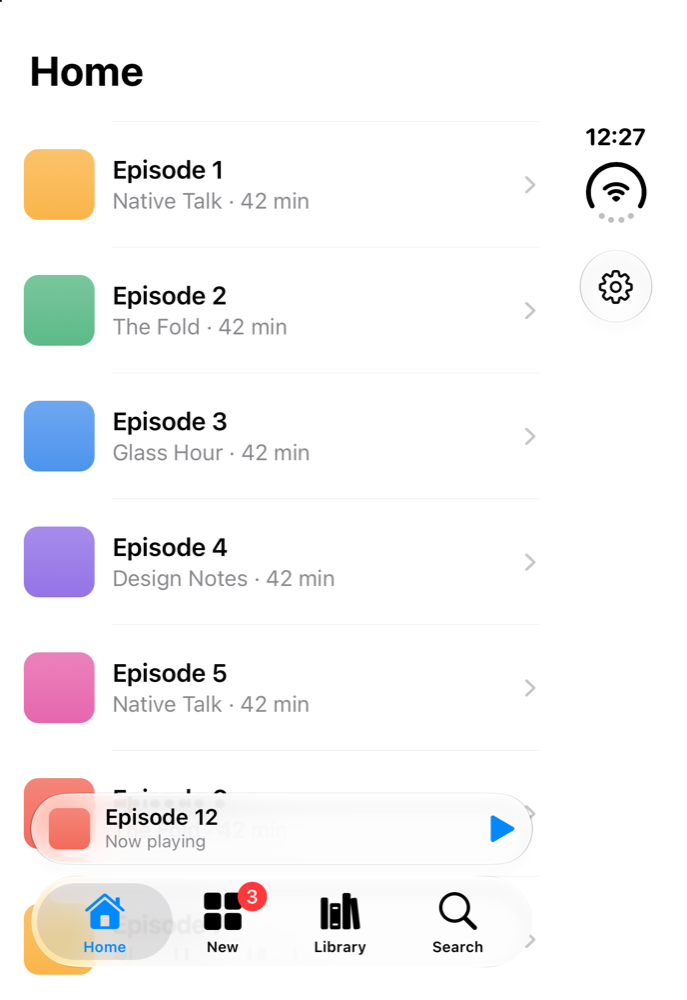
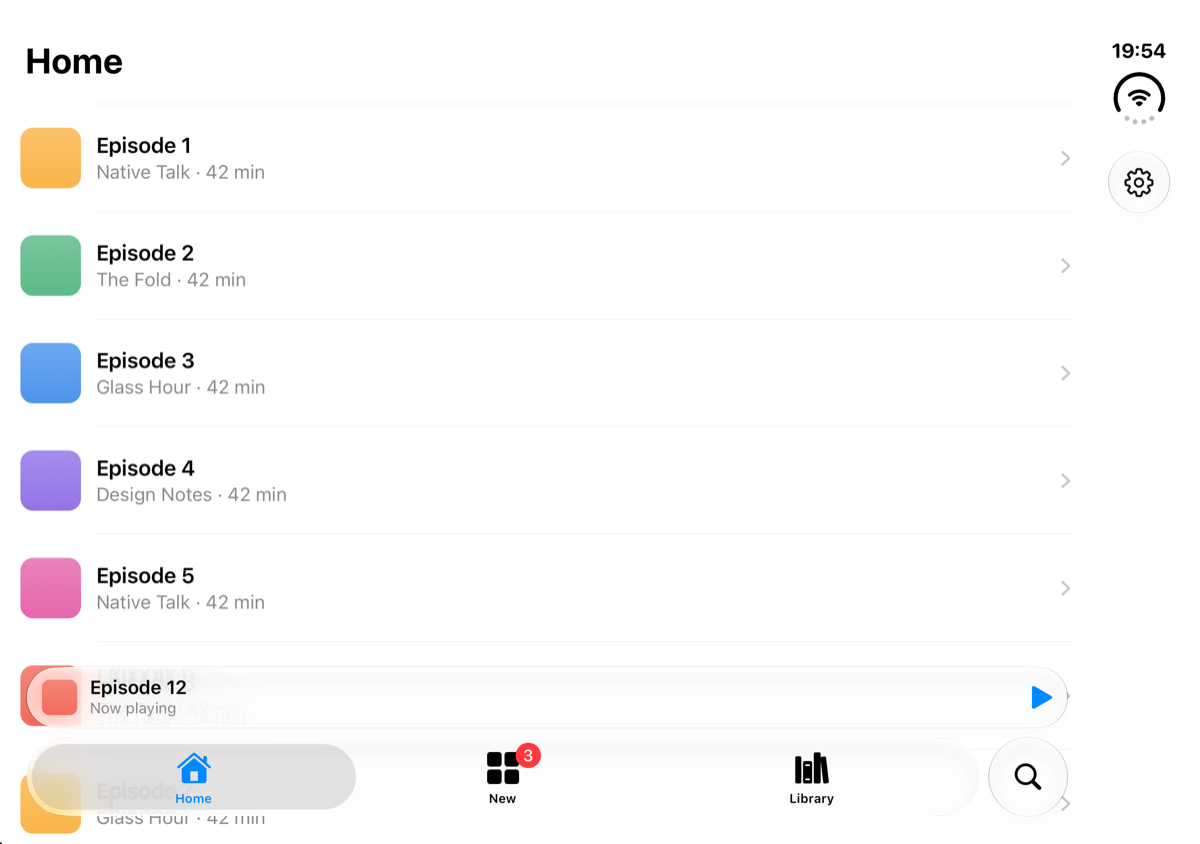
The JavaScript tab bar on iPhone Duo, closed and half open. It stays at the bottom, and on the open display it runs across the fold, where the system moves its own controls aside.
Apple’s guidelines describe two styles for a search tab. The standard tab sits in the bar with the other tabs and opens a search page, which suits apps where people browse before they search. The button appearance sits apart from the bar as a circle and opens the keyboard right away, for searches that should finish fast. I gave all three apps the button appearance. The SwiftUI app needed one modifier. The JavaScript bar needed a dozen edits: take Search out of the capsule, recalculate the pill and the drag positions for three tabs, animate the circle’s size, and focus the search field 50 milliseconds after the tab opens.
Pros:
- Full control over the look and the animation.
- The same component can render on Android.
- No dependency on how fast a library adopts a new iOS API.
Cons:
- Every new system behavior is code you write and maintain yourself.
- The bar does not move into the Duo rail, and Expo does not plan to support it.
- Dynamic Type, the large content viewer and the glass effects need extra work, and some of it is not possible from JavaScript.
- On Android a Liquid Glass bar looks out of place next to Material 3, so in practice you draw a second bar.
The UIKit tab bar is the native tab bar, and it gets new APIs late
On my iPhone I could not tell the third app from the SwiftUI one. UIKit draws that tab bar, so here the claim that React Native is native holds.
On iPhone Duo UIKit moved the tab bar into the rail as well. The differences were elsewhere.
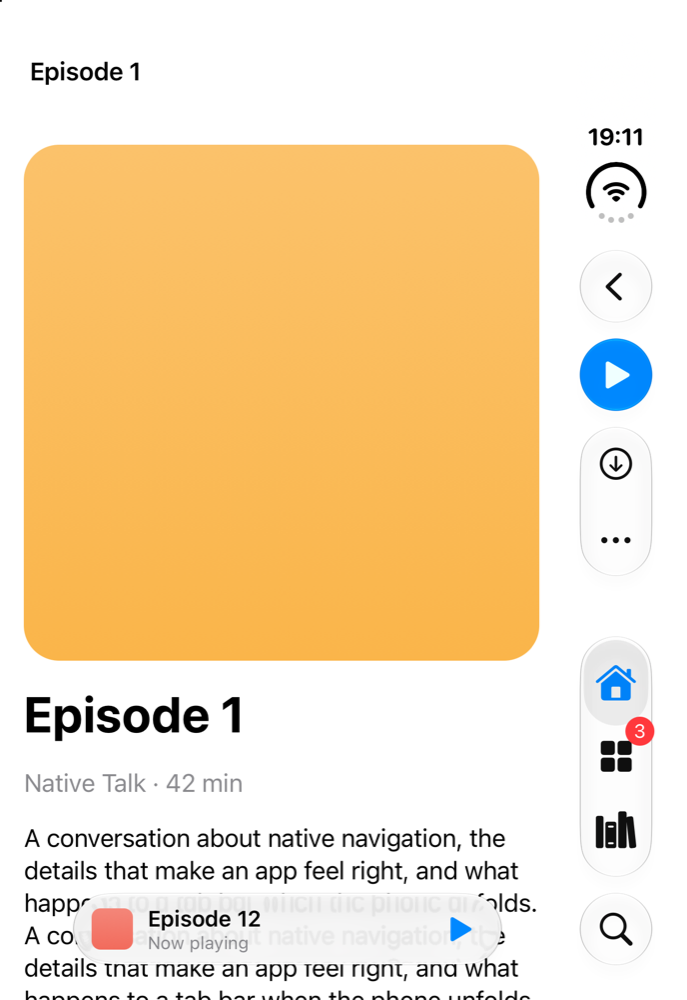
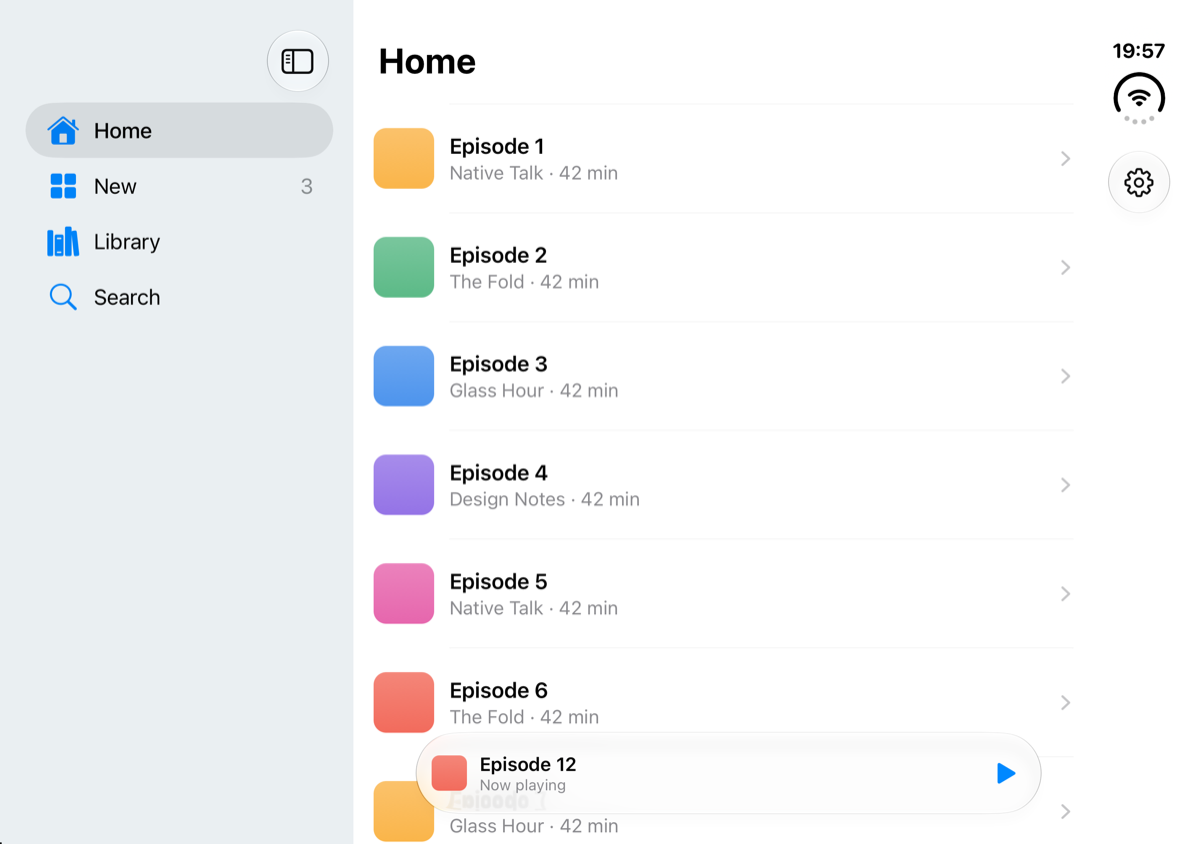
The UIKit tab bar on iPhone Duo. Closed, it sits in the rail as in SwiftUI. Open, it can turn into a sidebar.
- Two Duo settings are missing. Expo Router and react-native-screens 4.30 have no option for what the rail keeps when space runs out, or for turning the rail off on one screen. At launch, the only way to get them is to patch the native library.
- Header buttons written in JSX stay out of the rail. iOS moves only standard bar buttons into the rail. Most React Native apps write their header buttons in JSX, and the library turns those into custom views, so the rail shows only Back. My app uses the newer native header items, which do move.
- The content ran under the rail. The React Native list used the full width until I added safe area padding by hand. Every screen in a real app needs the same padding. Expo’s guide documents an 84 point inset, and the React Native fix for scroll views had not been released when I tested.
- Bugs appear between the layers. In my first version, built on bare React Native, the rail had no tab bar if you opened the app while the Duo was unfolded (issue 4989). The cause is a UIKit bug, and the order in which react-native-screens attaches its tab controller triggers it. The fix is merged but not released yet. A SwiftUI app does not have that layer.
- The usual Expo layout breaks the rail. Most Expo apps put a
Stackat the root, with the tabs and the modal screens inside it. My first build did the same. On the Duo, the detail screen’s six toolbar buttons then ran down the rail into the tab bar, with no overflow menu. Making the tabs the root fixed it, and the Settings screen had to move inside the Home tab.
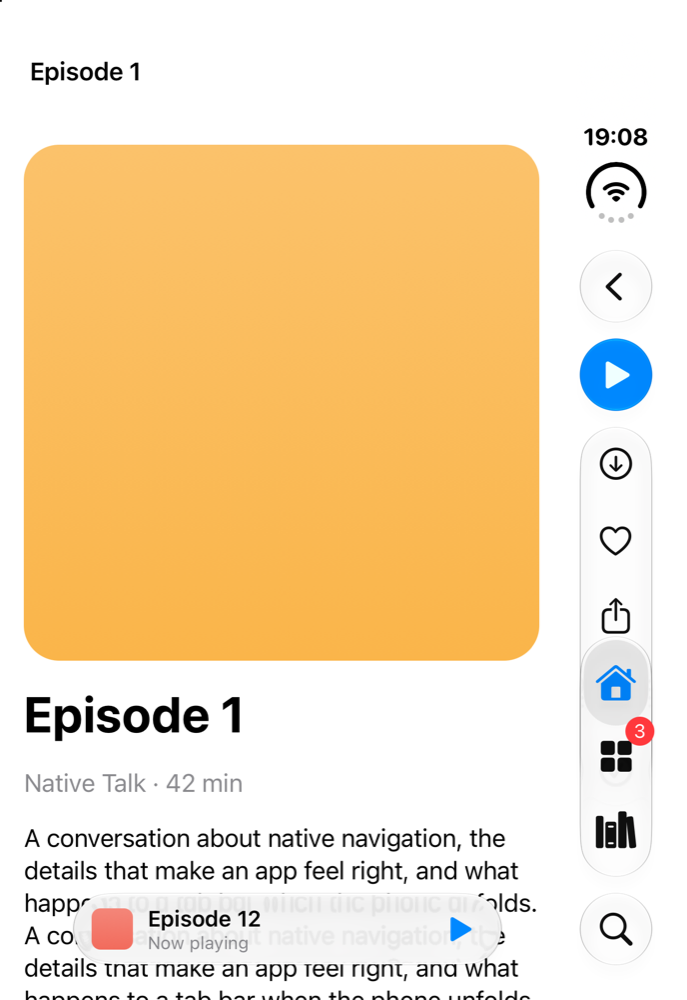
With Expo’s usual root Stack, the toolbar runs into the tab bar.
In Expo Router the two kinds of header button look like this:
// Stays out of the rail, because iOS treats it as a custom view
headerRight: () => <Button icon="play.fill" onPress={play} />

// Moves into the rail, and into the overflow menu when space runs out
<Stack.Toolbar placement="right">
  <Stack.Toolbar.Button icon="play.fill" variant="prominent" onPress={play} />
  <Stack.Toolbar.Button icon="arrow.down.circle" onPress={download}
    {...lowPriority} />
</Stack.Toolbar>
The lowPriority spread is a small example of the layers. Expo Router’s types don’t include visibilityPriority yet, so my app passes it with a type cast, and react-native-screens hands it to UIKit.
React Native has been here before. The bottom accessory, the slot that holds the mini player, reached react-native-screens in December 2025, three months after iOS 26 shipped. React Navigation still ships its native tabs as “unstable”. Large titles took years.1
Expo found a way to turn the rail off. Its status bar module replaces UIKit’s preferredVerticalBarBehavior on UIViewController itself while the app runs, so the value applies to every screen. A screen could turn the rail off while it’s mounted. But native tabs keep all four tabs mounted, so in practice it’s one switch for the whole app. SwiftUI sets the same thing on one screen. Apple asks for a stable choice per screen.
Pros:
- On a standard iPhone the tab bar is the system tab bar.
- Most Duo behaviors work, because UIKit does the layout.
- Folding and unfolding resize the app without a restart, and it keeps its state.
- Most of the app is still shared TypeScript.
Cons:
- Each new iOS API needs a library update before you can use it.
- Layout work the system does in SwiftUI moves to your code, screen by screen.
- Bugs appear where JavaScript, the library and UIKit meet.
- The tab bar code is iOS code. Every icon in my app is an SF Symbol, which Android does not have. The search tab, the minimize behavior, the mini player and the sidebar placement are all options for iOS only in Expo Router. Android’s Material bottom navigation has no slot for a mini player and allows five tabs at most.
The tradeoffs side by side
| SwiftUI | React Native, JavaScript tab bar | React Native, UIKit tab bar | |
|---|---|---|---|
| Liquid Glass on iPhone | system | imitation | system |
| Shrink on scroll | one modifier | written by hand | one option |
| Search as a separate button | one modifier | a dozen edits | one option |
| Tab bar in the Duo rail | yes | no | yes |
| Content clears the rail | automatic | manual padding | manual padding |
| What the rail keeps | one modifier | no | no |
| Turn the rail off | per screen | runtime patch for the whole app | runtime patch for the whole app |
| Android | second codebase | second bar in practice | separate icons and accessory |
Every column has a cost. SwiftUI costs a second codebase for Android. The JavaScript bar costs every new platform behavior, written by hand. The UIKit bar costs a wait for each new API, plus the bugs between the layers.
And this is only the iOS side. Every row in the table is iOS code: the SF Symbols, the search tab, the mini player slot, the rail. Android needs its own version of each. So once a team fine tunes a React Native app to feel native on iOS, the codebase already splits into two implementations of the same navigation. That is the duplication React Native was supposed to remove.
Coding agents changed the cost of the second codebase
For a decade the second codebase was the cost that decided the question. Coding agents changed that.
On September 10 Shopify announced that it is moving its apps from React Native back to Swift and Kotlin. Mustafa Ali, who leads mobile there, wrote that “coding models have gotten dramatically better, and for our apps and our team, building the same feature in Swift and Kotlin no longer carries the cost it used to.” Agents implement a feature on Android using the iOS version as a reference, and the other way around. The Shop app went from a proof of concept to a native rebuild in the App Store in 12 weeks.
Native look and feel is missing from these discussions
Shopify’s post lists its reasons in detail: build cost, developers working across the stack, feature parity, platform capabilities, “first-party tooling”, fewer dependency layers. Every rebuild has to match or improve the current apps on “performance, stability, accessibility, and product quality”. The 2020 post that started the move to React Native lists productivity and code sharing.
Neither post says that a native app looks and feels like the platform it runs on. I think that is the first reason to build native. An iPhone app should behave like the iPhone it runs on, today and after the next hardware change.
iPhone Duo makes this concrete. A user who folds the phone sees the tab bar move to the side in every Apple app. If one app keeps its tab bar at the bottom, that user notices.
Time to reconsider the tradeoff
On iPhone Duo a React Native app with standard navigation needs rail padding on every screen, and it still lacks two of Apple’s Duo settings. Even filling the screen requires React Native 0.88, released eight days before the phone. With a JavaScript tab bar it also lacks the rail itself.
Look and feel should get more attention in this discussion. iPhone Duo shows which details are at stake: the rail, the sidebar, what the rail keeps, the content that clears it. React Native gets these late, or only for the whole app, or not at all.
I think the tide is turning. To get that native look and feel, a React Native app needs more and more code specific to each platform. At the same time, coding agents now write basically all the code, and they review most of it too. SwiftUI and Jetpack Compose are built in a similar way, so a human can still keep an eye on both codebases. Both describe the tabs and let the system draw them, and Compose’s scaffold switches from a bottom bar to a rail on wider screens:
TabView {
    Tab("Home", systemImage: "house.fill") { HomeScreen() }
    Tab("Library", systemImage: "books.vertical.fill") { LibraryScreen() }
}
NavigationSuiteScaffold(
    navigationSuiteItems = {
        Destination.entries.forEach {
            item(
                icon = { Icon(it.icon, contentDescription = null) },
                label = { Text(it.label) },
                selected = it == current,
                onClick = { current = it },
            )
        }
    }
) { DestinationScreen(current) }
That means smaller and smaller teams can afford to go fully native and give their users a better experience. I expect more companies to follow Shopify soon.
So will iPhone Duo kill React Native? Definitely not. There are still a lot of scenarios where the tradeoffs go towards React Native. This article wanted to bring up some of the new factors that need to be considered thoroughly.
iOS 11 added large titles in September 2017: the big title at the top of a screen that shrinks into the navigation bar when you scroll. React Navigation, the router most React Native apps used, drew its header in JavaScript and had no large titles. They arrived only when react-native-screens wrapped the native navigation controller, as an alpha in September 2019 and in a stable release in February 2020. That’s two and a half years. Wix’s React Native Navigation used the native controller from the start and had them within months. And even today the large title collapses only when the screen’s content is a scroll view that fills the screen. The react-native-screens tracker still has open issues about large titles that don’t collapse, or that jump during a scroll. ↩